
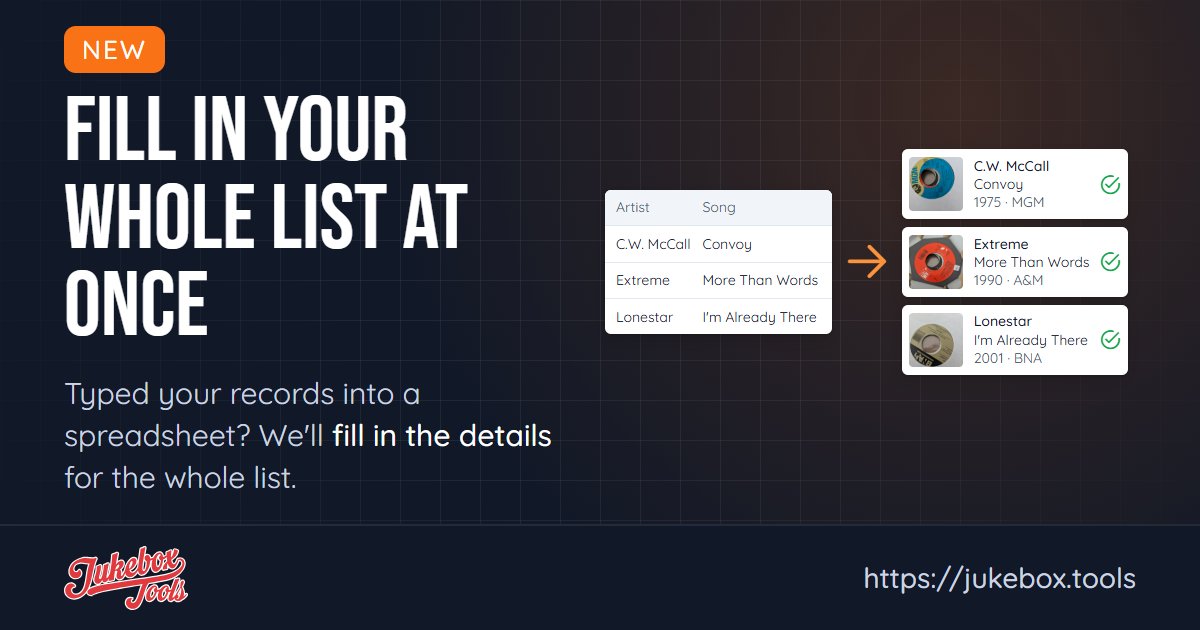
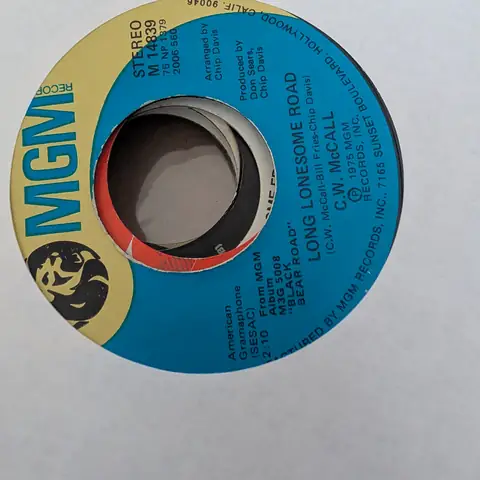
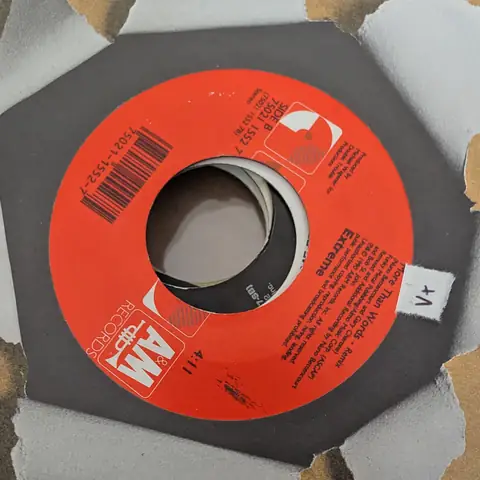
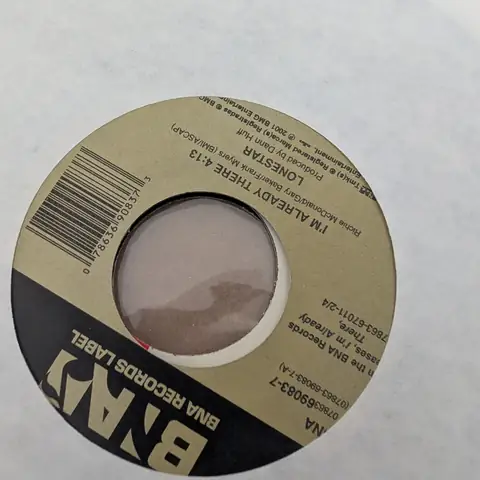
A list from a spreadsheet gets your records into Jukebox Tools fast, but only with what you typed: usually the artist and the songs. Until now, filling in the rest meant finding each record one at a time. Find Records does the whole list.
Where to find it
- On your dashboard, the Find records card shows how many records don't have their details yet. Click Find records.
- After you import a spreadsheet, the import's page has a Find records button for the records in that import.
What it does
Find Records works down the list, newest records first. For each one it looks for the artist and the A-side, then picks the pressing whose B-side, year and speed match yours. Each record lands in one of three lists:
- Found: it picked a match. You see its picture, year, label, catalog number and what it sells for.
- Choose One: there were possible matches, but none was a sure one. Click Choose and pick it.
- Not Found: nothing turned up. Click Search to try other words, or Skip to leave it.
Saving
Nothing changes until you save. Click Save matches to save everything under Found. A record you choose yourself is saved right away.
Check a few of the matches before you save them all, especially songs that were reissued many times.
With the details filled in, your title strips can show the label and catalog number (see more ways to style your strip text), your dashboard shows what your collection is worth, and Advanced Search can filter by year and genre.