
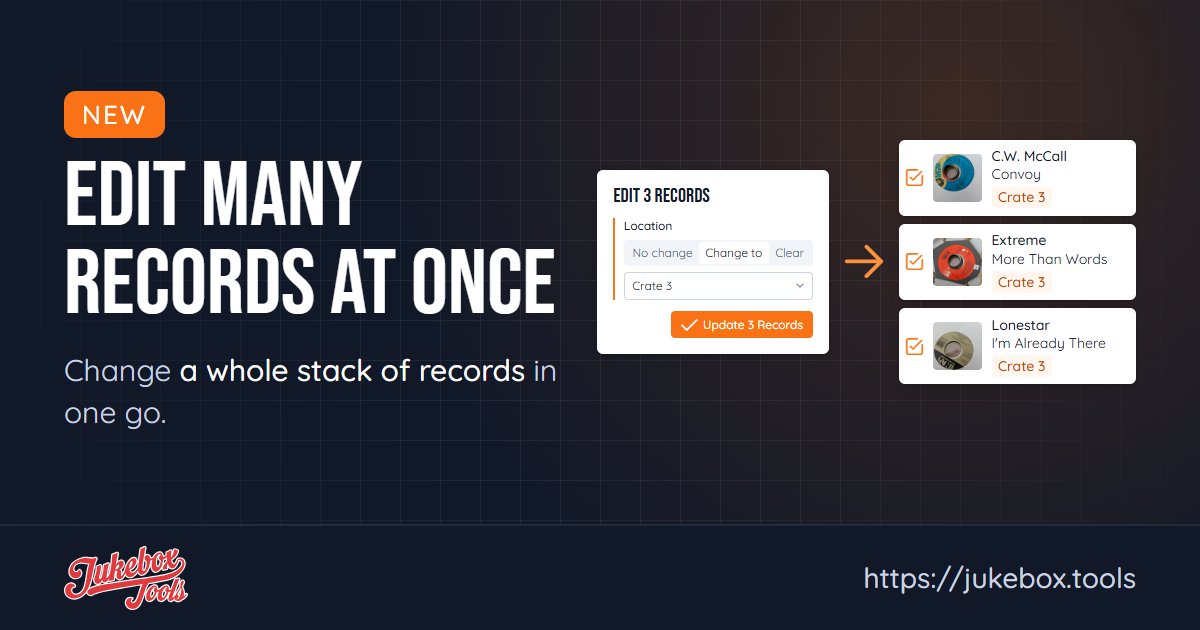
Fixing the same thing on twenty records used to mean opening twenty records. Now you check them all and make the change once.
How to do it
- In your collection, check the box next to each record you want to change. The box at the top of the list checks every record on the page.
- Click Edit. With one record checked, it opens that record as before. With two or more, it lists the artist, the year and your custom fields, each on No change.
- Next to each field you want to change, pick Change to and type or choose the new value, or pick Clear to empty it. A field that will change gets an orange edge.
- Click Update.
Under each field you can see what the checked records have now, like "Now: 1964 (5), 1965 (3)", so you know what you're changing. When they all have the same value, Change to starts from it.
What you can change
- Artist, to fix a name typed different ways: search for "Beatles", check them all, and set the artist to "The Beatles". On a record with a different artist on side B, it changes side A's artist.
- Year.
- Your custom fields. This is where it saves the most time. Mark which crate a record is in, its condition, or whether it's in the jukebox, for a whole stack at once. Then find those records again with Advanced Search, in your collection or in Layout Studio when you fill a jukebox. New to custom fields? Set them up first.
Fields left on No change stay as they are.
On your phone
Check the records in the list, then tap the pencil in the bar above them.