
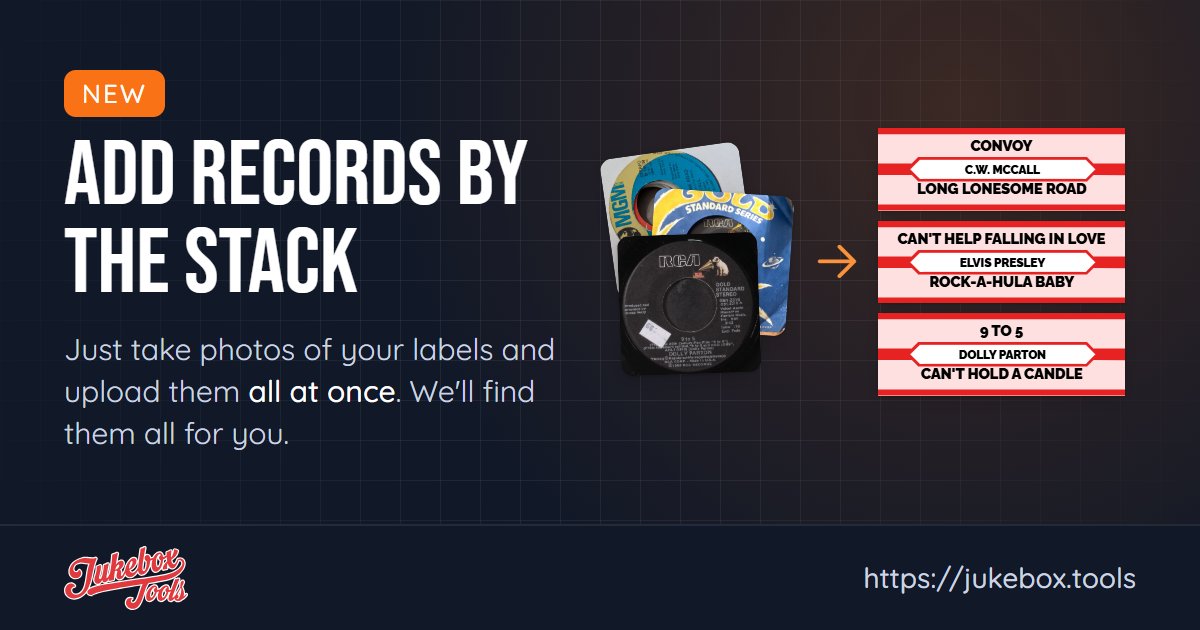
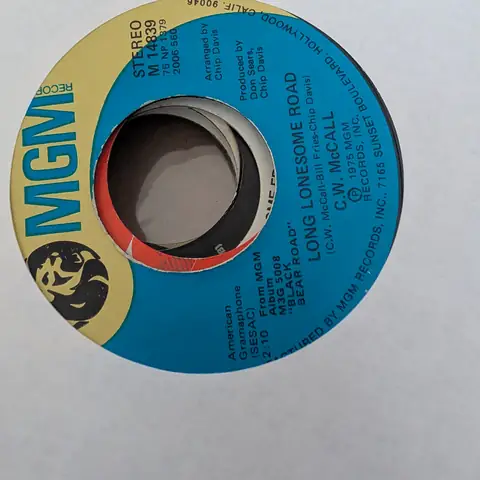
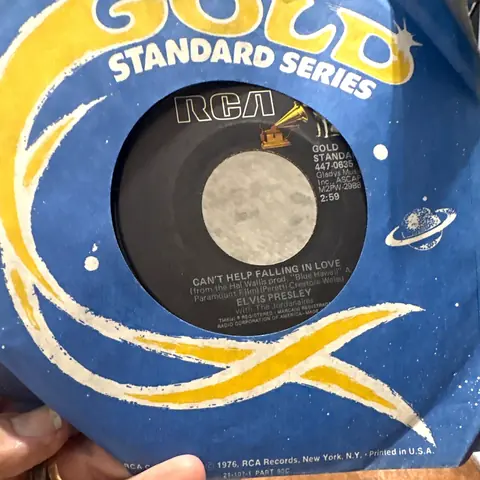
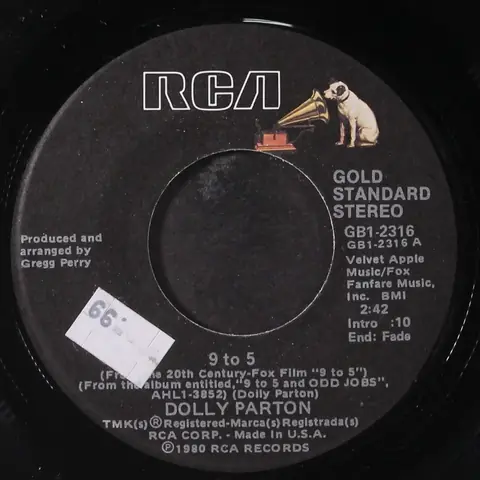
Got a crate of 45s and no list of them? You don't have to type them in. Take a photo of each label, upload the whole stack, and Jukebox Tools reads each one and finds the record.
What gets filled in
For a 45 or 78: the artist, the songs on both sides, the record label, the catalog number and the year, from the matching pressing on Discogs. For a CD: the artist, the album and its tracklist.
Taking photos that work
- One label per photo. A photo with several records in it only finds one of them.
- Straight on. Hold the phone flat above the label, so the writing isn't at an angle.
- Good light, no glare. Daylight or a bright room works best. Shiny labels catch the flash, so turn it off.
- Get the catalog number in. It's the number on the label that tells one pressing from another, and a 45 or 78 can't be matched without it.
- Photos straight from your phone are fine: JPEG, PNG, WebP or HEIC (the iPhone's own format).
Try five or six records first. You'll see how your photos come out before you do the whole crate.
Uploading
- Go to Import, click Import Music and choose Upload photos of my records and CDs.
- Drop the photos onto the page, or click Select Photos and pick them. On a phone, you can pick them straight from your photos.
- Each photo shows Finding... while it's read, then Found with the record it matched. The bars at the top count the photos done and the lookups you have left.
You can add more with Add More Photos while the first ones are still being read.
Checking the list
The tabs sort the photos:
- Matched: found. Check the artist and titles. The pencil fixes a typo, and the magnifier searches again if it's the wrong record.
- Needs Selection: more than one pressing fits. Click Select and pick yours.
- No Match: the label couldn't be read or found. Click Search to find it yourself, or Don't Import to leave it out.
When the list looks right, click Import. The records go into your collection, and the button becomes Add to Print Set, so you can go straight on to printing their title strips.